
The columns component, whose option icon is shown below, splits a section of the page into columns.

When you first add a columns component, it will create a two-column split. The column bars, as shown below, use a grey divider to indicate the gutter between columns. The plus signs at the bottom of the columns let you add options.

Editing columns
To add, delete, resize, or rearrange columns, click anywhere on the bar labelled Columns. The rest of the page will be dimmed, and the columns editor will be displayed:
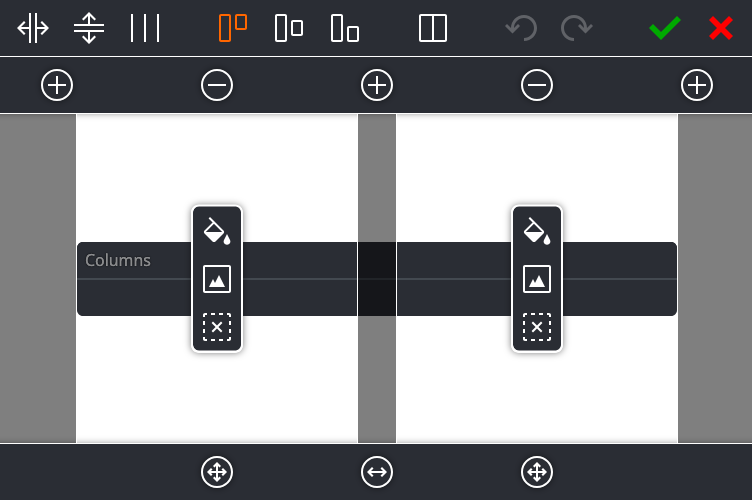
The bars above and below the columns contain four types of button:
Add (plus sign)
Clicking this button will add a new column between the neighbouring columns
Delete (minus sign)
Clicking this button will delete the column below it
Resize (two-headed arrow)
Clicking and dragging this button will resize the neighbouring columns
Move (four-headed arrow)
Clicking and dragging this button will move the column above it
The toolbar at the top of the page contains the following buttons:
Edit gutter
Clicking this button will let you change the horizontal gutter between columns
Edit space
Clicking this button will let you change the vertical space between options in a column
Edit dividers
Clicking this button will let you add dividers between columns (see below)
Align content to top
Align content to centre
Align content to bottom
Clicking one of these buttons will set the alignment of columns that have different heights
Equalise column widths
Clicking this button will adjust the columns so they all have the same width
Undo
Clicking this button will undo the last action
Redo
Clicking this button will redo the last action
OK
Clicking this button will apply the changes to the columns
Cancel
Clicking this button will close the column editor without changing the columns
The floating toolbar over each column contains the following buttons:
Background colour
Clicking this button lets you apply a background colour to the column
Background image
Clicking this button lets you apply a background image to the column
Remove background
Clicking this button will remove the current background from the column
Column dividers
Clicking the Edit dividers button will show the column divider window:
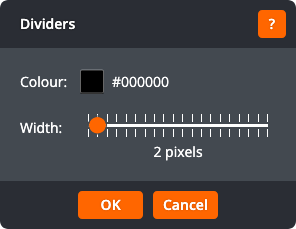
This window lets you choose a colour and width for vertical dividing lines betw. Click OK to apply the changes, or Cancel to return to the column editor without applying changes.
