
The icon component, whose option icon is shown below, creates an icon. An icon is a small image that can have its width and alignment set.

When you first add an icon option it shows as a black space, as you have not yet chosen an icon.
Editing an icon
Click on an icon to enter icon-editing mode. The original icon (or a black square if you have not yet chosen an icon) is shown, overlaid with a rectangle with four circular handles in its corners, as shown below.
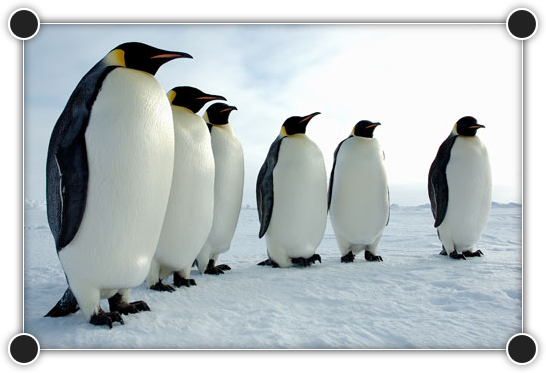
To control the part of the image that will be shown (the cropped area), click on one of the handles and and drag it to resize the rectangle. To prevent the aspect ratio (the ratio of width to height) from changing, hold down the shift key when clicking on the handle. To move the cropped area, click anywhere inside the rectangle and drag it.
At the top of the screen is the icon-editing toolbar, as shown in below.

The toolbar contains the following buttons:
Choose image
Clicking this button will open the image manager to let you choose which image to use.
Colour overlay
Moving the mouse over this button will display a panel letting you add a colour overlay to the icon.
Click on the colour swatch (small square of colour) to open a colour picker window to choose a colour from your site’s palette. You can add more colours to the colour picker using the Colours panel.
Drag the slider to control the opacity of the colour overlay. A lower opacity (more transparency) will allow more of the icon to show through, while a higher opacity (less transparency) will show more of the colour overlay.
Text alternative
Clicking this button will let you set the text alternative for the icon. The text alternative, often referred to as alt text, is intended for people with visual impairments who cannot see the icon. The text alternative is also used by search engines to determine the nature of the icon. It is important to remember that although the text alternative is also read by search engines, it is primarily intended for humans.
A common mistake is to describe the visual characteristics of the icon in the text alternative. Instead, for an icon that conveys information, the text alternative should convey equivalent information. For example, an icon of an envelope might have a text alternative stating “E-mail us”. For a purely decorative icon, the text alternative should be left blank.
Link image
Clicking this button will let you turn the icon into a link, in the same way as when linking text.
Aspect ratio
Clicking this button will let you set the icon aspect ratio. The icon aspect ratio is set as a width and a height. For example, a wide-screen image has a ratio of 16 wide to 9 high; this could also be entered as 1920 wide and 1080 high, which is the size (in pixels) of standard high definition image in a 16:9 aspect ratio. Checking the Lock ratio box will prevent the aspect ratio from being changed when dragging the handles to crop the icon.
Width
Moving the mouse over this button will display a panel letting you choose the icon width using a slider.
Align image to left
Clicking this button will set the icon to be left-aligned.
Align image to centre
Clicking this button will set the icon to be centred.
Align image to right
Clicking this button will set the icon to be right-aligned.
Undo
Clicking this button will undo the last change to the icon.
Redo
Clicking this button will redo the last change to the icon.
OK
Clicking this button will leave icon-editing mode, keeping any changes.
Cancel
Clicking this button will leave icon-editing mode, discarding any changes.
