
The background component, whose option icon is shown below, creates an area of content with a background image.

Choosing an image
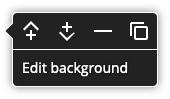
Until you choose an image, the background will be black. Right-click anywhere on the option and select Edit background from the context menu, as shown below, to open the background image editor.
The background image editor works similarly to the normal image editor. The original image (or a black square if you have not yet chosen an image) is shown, overlaid with a rectangle with four circular handles in its corners:
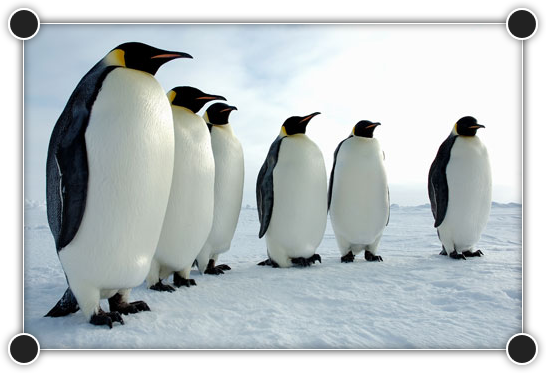
To control the part of the image that will be shown (the cropped area), click on one of the handles and and drag it to resize the rectangle. To prevent the aspect ratio (the ratio of width to height) from changing, hold down the shift key when clicking on the handle. To move the cropped area, click anywhere inside the rectangle and drag it.
At the top of the screen is the background image toolbar:

The toolbar contains the following buttons:
Choose image
Clicking this button will open the image manager to let you choose which image to use.
Colour overlay
Moving the mouse over this button will display a panel letting you add a colour overlay to the image.
Click on the colour swatch (small square of colour) to open a colour picker window to choose a colour from your site’s palette. You can add more colours to the colour picker using the Colours panel.
Drag the slider to control the opacity of the colour overlay. A lower opacity (more transparency) will allow more of the image to show through, while a higher opacity (less transparency) will show more of the colour overlay.
Focus
Clicking this button will let you set a focus point for the image. Crosshairs (the same symbol shown on the toolbar icon) will be shown on the image, and you can drag it around to move the focus point.
The aspect ratio of the background (its width compared to its height) depends on the amount of content on top of it, which means the background image will usually be cropped further, with either part of its top and bottom sides or its left and right sides not visible. If you don't set a focus point, the image will be cropped equally on both sides, keeping its centre in the centre of the background. If you set a focus point, the image will be cropped towards the focus point. For example, if you set a focus point a quarter of the way in from the edge of the image, this point will be kept a quarter of the way in from the edge of the background.
Attachment (only available for full-width backgrounds)
Moving the mouse over this button will display a panel letting you choose how the image moves as the page is scrolled.
Scroll makes the image move with the page. Parallax makes the image move at a slower speed than the page. Fixed makes the image stay in a fixed position as the page scrolls past.
Note that while editing the page, parallax backgrounds will show as fixed. Mobile devices do not support parallax and fixed backgrounds, so on mobile devices the background will move with the page.
Undo (F2 or Control Z)
Clicking this button will undo the last change to the image.
Redo (F3 or Control Y)
Clicking this button will redo the last change to the image.
OK
Clicking this button will leave image-editing mode, keeping any changes.
Cancel
Clicking this button will leave image-editing mode, discarding any changes.
